13 November 2015

Castle Windsor trying to resolve all controllers causing error on external modules

Today I was playing with SPEAK trying to make a small app as a module to ease some Page History Visualisation. Well, after creating my rendering, speak app, and my service for the datasource, I decided to try it out on installing the module on one of our existing sitecore 8. This site was using GlassMapper, and using Castle Windsor as Ioc. Well after the successful install, I went and try to access my module and??? I got a 500 coming from my controller:


on my controller I only have something simple and not even using IoC:

       public ActionResult GetCurrentItem(string id, string database, string language, string version)
        {
            PageHistoryService service = new PageHistoryService();
            return Json(service.GetPageHistory(id, database, language, version), JsonRequestBehavior.AllowGet);

        }


Weirdly enough this is actually coming from Castle windsor which is in the existing project.

My Module dll would be with the namespace: XModule.Web
The Project already running in the sitecore would be : XProject.Web

Castle Windsor is defined in the initialisation pipeline as per:


This is quite a generic implementation of Castle Windosr and you will find quite documented on the web. Especially around the WindsorControllerFactory which most probably will look like:

using System;
using System.Web;
using System.Web.Mvc;
using System.Web.Routing;
using Castle.MicroKernel;
using System.Collections;

namespace XProject.Web.DependencyResolution
{
    public class WindsorControllerFactory : DefaultControllerFactory
    {
        private readonly IKernel kernel;

        public WindsorControllerFactory(IKernel kernel)
        {
            this.kernel = kernel;
        }

        public override void ReleaseController(IController controller)
        {
            kernel.ReleaseComponent(controller);
        }

        protected override IController GetControllerInstance(RequestContext requestContext, Type controllerType)
        {
            
            if (controllerType == null)
            {
                throw new HttpException(404, string.Format("The controller for path '{0}' could not be found.", requestContext.HttpContext.Request.Path));
            }

            return (IController)kernel.Resolve(controllerType);
        }
    }
}

Although this is great and working fine in our project itself since we do register our controller on the project, it seems like it is causing some issue when resolving other controllers from other assembly. We could re-edit the project and add some code to ensure the controller from the module assembly is registered as well but that would mean that every time we want to add a new module then we have to edit our castle implementation on the project and add something like

            container.Register(Classes.FromAssemblyNamed("xproject.web").BasedOn().LifestyleScoped());

Well that does not sounds nice to my hear... I would much prefer to not have to recompile an old project when adding module... so what is happening... well when the request hits sitecore pipeline, it goes to the CastleWindsor initialise... then hit the WindsorControllerFactory... as the new dll from the module is not registered (the castle implementation is on an old project...) then it cannot resolve it and the following line will return an exception:

            return (IController)kernel.Resolve(controllerType);

Although this is nice to see the exception so we know castle cannot resolve. wouldn't it be better to not let it die? Shouldn't we try to resolve it another way? for instance using the base method since we inherit from DefaultControllerFactory from System.MVC? my controller in the module would not even need to get resolved. Should we really enforce everyone putting code on our "Shared" Sitecore instance to register our dll for our implementation of Castle? Well I modified slightly the logic in the GetControllerInstance to include a fail safe: try to resolve using Castle but in case there is an issue, try it with the base:

           try
            {
                return (IController)kernel.Resolve(controllerType);
            }
            catch (Exception ex)
            {
                XProject.Web.SitecoreExtensions.Logging.Logger.Warn("Castle windsor could not resolve this controller");
            }
            return base.GetControllerInstance(requestContext, controllerType);

This will still resolve every controller registered. but it will fail graciously and get passed to the Default resolver which will resolve it correctly and so my module controller gets resolved as well...

Just in case, if you do not like try catch, you may also want to try that:

            IHandler handler = ((IKernelInternal)kernel).LoadHandlerByType((string)null, controllerType, null);
            if (handler == null)
            {
                return base.GetControllerInstance(requestContext, controllerType);
            }
            else
            {
                return (IController)kernel.Resolve(controllerType);
            }


This is pretty much the test in Castle that will throw the Component not found exception...

Also refering to my earlier post: http://sitecorepromenade.blogspot.com.au/2015_05_01_archive.html
You will note that implementing the try catch block or the if statement, you will not need to add the following registration:

            container.Register(Classes.FromAssemblyNamed("Sitecore.Speak.Client").BasedOn().LifestylePerWebRequest());
            container.Register(Classes.FromAssemblyNamed("Sitecore.Mvc").BasedOn().LifestylePerWebRequest());
            container.Register(Classes.FromAssemblyNamed("Sitecore.Mvc.DeviceSimulator").BasedOn().LifestylePerWebRequest());
            container.Register(Classes.FromAssemblyNamed("Sitecore.Marketing.Client").BasedOn().LifestylePerWebRequest());
            container.Register(Classes.FromAssemblyNamed("Sitecore.Client.LicenseOptions").BasedOn().LifestylePerWebRequest());

Having say all of that, This is a fail safe. I think it would be better to register the Sitecore one above so it will not fail to resolve with Castle and it will avoid performance hit on the try action... Same thing is true for the module dll. if your implementation of castle can resolve it there would be less performance hit...

SO it would be a better Castle implementation to be able to add external DLL registration without having to rebuild the project... Surely configuration files can help us there... Well My good friend and Geeky Colleague has a nice post about that which I recommend reading:

http://accordingtothegeek.blogspot.com.au/2015/11/castlewindsor-issue-with-mvc-area.html

21 October 2015

Workflow with auto publish related items

Workflow... Workflow... Workflow...
On most of the website we have built, we have used Data Item and Rendering Datasource quite extensively. This is great for any personalisation work and also gives flexibility for displaying components throughout the presentation... Now when setting up the workflow: Obviously we want to have the pages into the workflow but also all the Data Items that are used for the rendering sources.

Let's get the sample workflow as an exemple. This has 3 state: Draft, Awaiting for Approval, Approved. This is quite nice for a page Item so editor will edit the page then submit it for approval. Publisher will then login and approve or reject the page which in term will go published (auto published) or back to Draft if rejected.


So let's put that in our standard value of our templates:

Great we now have all of our item in the workflow...
Now we want the page to be published automatically when approved... well that is great as the sample workflow already has that:


Well Almost... since the item gets published you will also want to publish the related items. That would be best so you don't miss all your datasource items. One awesome thing is that Sitecore has it. You just need to add the related parameter as per below: 


So, now, once our item will go to the approved state it will be automatically published. Well let's try it...
Login as editor, and lock and edit a page by editing one of the component or panel (datasource item content). then save. You will see that the item gets locked but also is your datasource item:


That is great... now let's submit the page through the workflow using the experience editor, which is what our client are actually doing.


Then approve it...

and well... it did not work:

After a bit of investigation, it turns out that approving the item did not approve the datasource item... well I guess it is kind of normal as workflow are usually set on individual item... Even though the publish action on the approved state will published the related items since the Datasource items are not on the final state those are not getting published... So what can we do? what if we only get workflow on the page item? That would not work well as content are stored on the Datasource item. OK, so what if we setup 2 workflow: one for the page item: this will be the 3 steps workflow (the one above) and the second workflow will be for the datasource item. This will be a simplier one with 2 steps: Draft and Approved. on the Approved state we will put an automated publish with sub items:


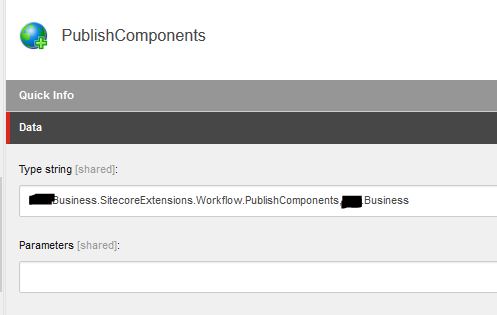
Now as per the above, what we will do is create a new action on the approved state of the main workflow which will

  • Loop through the Item Renderings
  • Find the Datasources Items
  • Push them to their component workflow to the approve state so those can be published
The PublishComponents action will looks like


You can view some sample of code to loop through the renderings in the presentation on the following post:
http://sitecorepromenade.blogspot.com.au/2015_07_01_archive.html

You can see some sample of code below which can be used to push items through workflow state


        public void Process(WorkflowPipelineArgs args)
        {
            Assert.ArgumentNotNull(args, "args");
            if (args.DataItem == null)
                return;
            using (new SecurityDisabler())
            {
                var presentationService = new PresentationContext();
                if (presentationService == null)
                {
                    Logging.Logger.Warn("Could not resolve the Presentation context");
                }

                IEnumerable dataSourceItems = presentationService.GetRenderingsSettings("main", args.DataItem);

                foreach (var renderingSettingsWrapper in dataSourceItems)
                {
                    if (renderingSettingsWrapper.DataSource != null)
                    {
                        Sitecore.Data.Items.Item datasourceItem;
                        if (!Sitecore.Data.ID.IsID(renderingSettingsWrapper.DataSource))
                            continue;

                        datasourceItem = args.DataItem.Database.GetItem(new ID(renderingSettingsWrapper.DataSource));

                        if (datasourceItem == null)
                            continue;

                        if (datasourceItem[XXX.Common.Constants.ItemIds.Workflows.WorkflowState] !=
                                                        XXX.Common.Constants.ItemIds.Workflows.ComponentsWorkflow.Published)
                        {
                            PublishComponent(args, datasourceItem);
                        }
                    }
                }
            }
        }

        private void PublishComponent(WorkflowPipelineArgs args, Item pageComponent)
        {
            var workflow = pageComponent.Database.WorkflowProvider.GetWorkflow(pageComponent);
            if (workflow != null)
            {
                workflow.Execute(XXX.Common.Constants.ItemIds.Workflows.ComponentsWorkflow.SubmitAction, pageComponent,
                "auto-published due to " + args.DataItem.DisplayName +
                " was published", false, new object[] { });
            }

            if (pageComponent.HasChildren)
            {
                foreach (var childComponent in pageComponent.Children.Where(
                 x => x[XXX.Common.Constants.ItemIds.Workflows.WorkflowState] != XXX.Common.Constants.ItemIds.Workflows.ComponentsWorkflow.Published))
                {
                    PublishComponent(args, childComponent);
                }
            }
        }

Now, when you will start editing your page item, this will draft your component item. then when you will approve your page item, this will then push the component item to Approve state and published...

Hope that will help anyone.

26 September 2015

Sitecore 8 setup a preview site

The out of the box capabilities of sitecore are quite large in terms of preview, experience editor... In most case scenario those are more than enough for content editor to preview their content before publishing the pages. However, from time to time it happens that part of approval process, a link to a person need to be sent so this person can view the page(s) and review it outside the workflow process. This can happen for Legal team to review any information on the page... well Obviously in those cases, it is quite tricky to set them up with a login details so they have to login into sitecore then preview the page.

What we could do in this situation is to setup a Preview site. Although this sounds great you will say that well since only item in the last step of the workflow can be published, this will not really work... Well here comes the power of publishing Target.

You will need to setup a new Publishing Target "Preview":


You can see that on the new Publishing target item you can tick the checkbox: "Preview publishing target". By ticking this checkbox you are allowing items that are not in final state to be published there. That is awesome...

Now, you will need to setup a new database and a new entry in the connection string config


When setting up the new database, you will also need to add the following configuration for the Preview Database:


        $(id)
        Images/database_web.png
        true
        
          
            publishing


        false


          100MB
          50MB
          2500KB
          50MB
          2500KB


You can also setup a few config to ensure that search index will also be created for your new Target DB. Create a new config file on your App_config/Include/XXX folder. Call the file: XXX.ContentSearch.Lucene.Index.Preview.config. Copy the following there:


            $(id)
            $(id)


                preview
                /sitecore


You can now define a new Site in your siteDefinition:


Finally ensure that you update the Sitecore.ContentSearch.DefaultConfigurations.config to add the new strategy:

          
            preview
            
            true


Now the final spte is to ensure that the users you are editing the content is in a role that has write permission on the Publishing target item. This will make sure that your editor will see the target in the publishing window. This will also make sure that he can check or uncheck this target.


Now on the workflow step you will now see that when the page is in the Awaiting for approval, you will still be able to publish it to the Preview site:


13 September 2015

Sitecore 8 and admin page to rebuild aggregation data

As sitecore devs, I am sure you are familiar with all the cool admin pages for clearing cache, viewing configuration file... Well since xDb I always wandered: all my analytics data goes into the mongo DB then Gets aggregatred but what if I need to trigger it manually? Well lucky sitecore thought about it. you have a nice page for that: /sitecore/admin/RebuildReportingDB.aspx.


Well if you start rebuilding straight away, you will encounter an error saying your reporting.secondary DB is not configured.

You can find more information about the secondray.reporting on the following links:

https://doc.sitecore.net/Sitecore%20Experience%20Platform/xDB%20configuration/Walkthrough%20Rebuilding%20the%20reporting%20database


25 August 2015

Sitecore 8 tracking media download

As part of the implementation, we sometime have question about tracking. It happened few time in the past where clients wanted to track PDF download on there website. Using Sitecore 6 was a bit tricky as it was kind of tricky. In the past, I tried a few things including overriding the  Media Handler to trigger an event "Download PDF". Eventhough this was working I did not like the idea of overridding the media handler as it is always painful for Sitecore upgrade and else.

Well I have to say that I was quite pleased to see that this is now handled out of the box on Sitecore 8. This is done through Media Assets. You can find more about it in the following link: https://doc.sitecore.net/sitecore%20experience%20platform/marketing%20taxonomies/classify%20a%20media%20item%20as%20a%20digital%20marketing%20asset

So what do you need to do:

1- Open your Marketing Control Panel and add a New Taxonomy Asset Item:


2- Deploy your Media Asset folder:


3- You can now use your Media Asset on your Media Item directly:

4- Now the only thing left to do is to setup the Event tracking on your media item:

5- setting up the event on the media item, means that everytime someone will request the media item, sitecore will track the Media Assets with the corresponding event: Download. The event already exist in sitecore and is already hooked to the Marketing report:

There you go you are now tracking the Media requests.

Just a quick look at the magic behind, if you quickly uncompile the Sitecore DLL, look for the MediaRequestHandler class that processes '~/media' requests raise 'media:request' event.


Analytics defined in 'Sitecore.Analytics.RobotDetection.Media.MediaRequestHandler' handler that is supposed to do processing will checks:
  1. If Analytics is enabled for the site
  2. If requested item has some data in a tracking field
  3. Launches 'Tracker.StartTracking()' API which would initialize tracker ( 'startAnalytics' pipeline )
Happy coding

16 August 2015

Loop through renderings in presentation and get the associated datasource

Today I was asked for how you can programmatically loop through all the renderings for an item and get the datasource information for each of the rendering. That sounded like an interesting question so I decided to post it here... What we wanted to do was to push the datasource items through workflow when the main item is beeing approved. We will split this in 2 posts so it is not too long here. So on this first post we will just see some code that will loop through the presentation and retrieve the list of item set in the renderings datasource. To make it a little different, lets try to find those where the rendering is inside a specific placeholder and a device

Well I first started to create a context class that will have method like the following:  
        /// 
        /// Return renderings for a specific Placeholder for the current item and a specific device
        /// 
        /// 
        /// 
        /// 
        public IEnumerable GetRenderings(string placeholderKey, string deviceName)
        {
            var currentItem = Sitecore.Context.Item;

            Sitecore.Data.Fields.LayoutField layoutField = new Sitecore.Data.Fields.LayoutField(currentItem);
            Sitecore.Layouts.RenderingReference[] renderings = layoutField.GetReferences(GetDeviceItem(deviceName));

            var filteredRenderingList = new List();

            foreach (var rendering in renderings)
            {
                if (rendering.Placeholder.Contains(placeholderKey))
                {
                    filteredRenderingList.Add(new RenderingItemWrapper(rendering.RenderingItem));
                }
            }

            return filteredRenderingList;
        }

        /// 
        /// Return the settings including datasource ID for the renderings in a specific placeholder 
        /// For current item and specific device
        /// 
        /// 
        /// 
        /// 
        public IEnumerable GetRenderingsSettings(string placeholderKey, string deviceName)
        {
            var currentItem = Sitecore.Context.Item;

            Sitecore.Data.Fields.LayoutField layoutField = new Sitecore.Data.Fields.LayoutField(currentItem);
            Sitecore.Layouts.RenderingReference[] renderings = layoutField.GetReferences(GetDeviceItem(deviceName));

            var filteredRenderingList = new List();

            foreach (var rendering in renderings)
            {
                if (rendering.Placeholder.Contains(placeholderKey))
                {
                    filteredRenderingList.Add(new RenderingSettingsWrapper(rendering.Settings));
                }
            }

            return filteredRenderingList;
        }

        /// 
        /// Get the Device from the context database and the Device name
        /// 
        /// 
        /// 
        private Sitecore.Data.Items.DeviceItem GetDeviceItem(string deviceName)
        {
            if (Sitecore.Data.ID.IsID(deviceName))
            {
                return Sitecore.Context.Database.Resources.Devices.GetAll().Where(d => d.ID.Guid == new Guid(deviceName)).First();
            }
            else
            {
                return Sitecore.Context.Database.Resources.Devices.GetAll().Where(d => d.Name.ToLower() == deviceName.ToLower()).First();
            }
        }


You will note the difference between the IRenderingItemWrapper and IRenderingSettingsWrapper
The later has all the information about the Datasource Item.

Then you can have a method that will loop through your IEnumerable then check your datasource information:

        /// 
        /// Get the Datasources for all renderings inside a placeholders
        /// 
        /// 
        /// 
        public IEnumerable GetRenderingDatasources(string placeholderKey)
        {
            var renderingDatasources = new List();

            IEnumerable renderingsSettings = _presentationContext.GetRenderingsSettings(placeholderKey);
            foreach (var renderingSettings in renderingsSettings)
            {
                if (renderingSettings.DataSource != null)
                {
                    Sitecore.Data.Items.Item datasourceItem;
                    if (Sitecore.Data.ID.IsID(renderingSettings.DataSource))
                    {
                        datasourceItem = _sitecoreContext.GetItem(new Guid(renderingSettings.DataSource));
                    }
                    else
                    {
                        datasourceItem = _sitecoreContext.GetItem(renderingSettings.DataSource);
                    }

                    if (datasourceItem == null)
                        continue;

                    renderingDatasources.Add(datasourceItem);
                }
            }

            return renderingDatasources;
        }


Hope that help anyone...

25 July 2015

Site search and Predictive

I had an interesting requirement about a predictive search. The requirement was to propose terms when a user start entering text on the Search Box:


After a few thoughts we have considered the following approach let's make those terms propositions coming from the website content. As a matter of fact why not using the index to search for the term and return the short list required. What would we need:

  1. WebAPI call from the View
  2. A search Service on the .NET side that will query the index and bring the result
So It sounds quite simple.

So let's setup the Controller for your WebAPI. this could be something like:

namespace XXX.Web.Controllers.XXX.API
{
    [RoutePrefix("webapi/v1/search")]
    public class SuggestiveSearchController : ServicesApiController
    {
        private readonly ISuggestiveSearch _searchService;

        public SuggestiveSearchController(ISuggestiveSearch suggestiveSearchServices)
        {
            _searchService = suggestiveSearchServices;
        }

        [HttpGet]
        [Route("autocomplete")]
        public AutoCompleteSuggestionList Autocomplete(string query)
        {
            if (string.IsNullOrEmpty(query))
                return null;

            return _searchService.AutoCompleteTerm(query);
        }
    }
}


Now, on your View you will have something that calls your WebApi:

            $(document).ready(function () {
                $("#keyword.autocomplete").autocomplete({
                    serviceUrl: '/webapi/v1/search/autocomplete'
                });
            });


Make sure your route will resolve and Sitecore will not resolve your WebAPI route. For that you could use the Attribute routing as per the really nice article from Bart Bovendeerdt on the following link: http://wp-bartbovendeerdtcom.azurewebsites.net/sitecore-8-webapi-v2-mvc-and-attribute-routing/

Then on your service level, you will then retrieve your list of suggestion through Sitecore Content Search - here would be a quick draft...

        public AutoCompleteSuggestionList AutoCompleteTerm(string term)
        {
            var result = new AutoCompleteSuggestionList();
            var list = new List();

            if (String.IsNullOrEmpty(term))
                return result;

            result.query = term;

            var sitecoreService = new SitecoreService(_databaseContext.GetDatabaseName());
            var home = sitecoreService.GetItem(_siteContext.GetStartPath());
            var index = _contentSearchContext.GetIndex(new SitecoreIndexableItem(home));

            using (var context = index.CreateSearchContext(SearchSecurityOptions.DisableSecurityCheck))
            {
                var suggestionsKeywords = context.GetTermsByFieldName("keywords", term);
                foreach (var suggestion in suggestionsKeywords 
                {
                    list.Add(suggestion.Term);
                }
            }
            if (list.Count <= 0)
            {
                result.suggestions = list;
                return result;
 
            }

            result.suggestions = list.Distinct().Take(10).ToList();
            return result;
        }
    }

9 July 2015

Sitecore 8 Upload Zip File with Unpack options broken

Interresting topic for the day. I went on a client side for a training today and I show Sitecore capability for batch upload. Which I used quite all the time on Sitecore 7. So quite confidently, I decided to go ahead and demo it on the fly. Well unfortunately for me this did not go as planned...

I prepared my zip files with the different images, folder and subfolders


Went to the media library to upload the Zip file


Selected the unpack option


And... quite abbarassing


Well this has been reported as a bug and the workaround has been provided. If you face the same issue, you will need to edit the content of the MediaFolder.js file in the location /Website/Sitecore/Shell/Applications/Media/MediaFolder 
replace the line 320 with the following:


 //Sitecore.Support.439231
    this.yUploader.upload(file, this.destination, params);
 //Sitecore.Support.439231