Showing posts with label Sitecore MVC. Show all posts

5 May 2015

Passing Invalid ID in the Rendering Datasource Break your page

Using Sitecore 8 MVC and GlassMapper has been awesome (Thanks to Mike Edwards great work). This is one of the must have for Sitecore MVC. I usually have my Rendering Datasource field pointing at a "Data" Item on the tree:


On the View code I can then bind my view with the Model using GlassMapper as per the following Code:

@inherits Glass.Mapper.Sc.Web.Mvc.GlassView<DPE.Data.Interfaces.SiteSettings.ISiteSettings>

I like to use Interfaces when defining the Models...

While this is great and working correctly when all is setup correctly, I have had a small issue on a latest project where editors deleted the datasource item without removing the links. Which left the Presentation of the item with a broken link:


Although this was quite simple to fix and instruct the client to select the option to either remove the links and/or editing the links manually. This was pointing at another case scenario:

what if you forgot to publish the data source item... Indeed in this situation you will end up with the same broken link in your datasource field on the web database and it will break the page with the following error:


The issue there is that sitecore is trying to create the default model during the pipeline action:

Sitecore.Mvc.Pipelines.Response.GetModel.CreateDefaultRenderingModel, Sitecore.Mvc

While trying to implement a custom action to replace the above pipeline, I found this great post from Hiral Desai. Really great source of information to implement the way around the issue:

The work around was quite simple: replacing the GetViewRenderer pipeline action. In order to do that we need to add the following config entry in our custom patch config files:


  < sitecore>


Then on the code side, we need to implement our new pipeline acttion with the following code:
public class GetViewRendererWithItemValidation : GetViewRenderer
    {        
        protected override Renderer GetRenderer(Rendering rendering, GetRendererArgs args)
        {           
            var viewRenderer = base.GetRenderer(rendering, args) as ViewRenderer;
            if (viewRenderer == null)
                return null;

            // Ignore item check when in page editor
            // Also this will break if the item for the datasource has been deleted without removing the link.
            if (Context.PageMode.IsPageEditor || Context.PageMode.IsPageEditorEditing)
                return viewRenderer;

            // Override renderer to null when there is an unpublished item refererenced by underlying view
            return viewRenderer.Rendering.Item != null && viewRenderer.Rendering.RenderingItem.InnerItem != null
                ? viewRenderer
                : null;
        }
    }

Hoping that will help anyone.


17 April 2015

Sitecore 8 Experience Editor Nav Bar disappear when scrolling

One weird issue we had today, which I am surprise we did not picked it up earlier is:

Where is the Children on the Nav Bar??
when opening the page and try to navigate, it all looks fine:

But then when starting to scroll down the page then trying to navigate again... it all disappear:


Well that is caused by the breadcrumb beeing positioned absolute instead of fixed. It has been reported as a bug with the reference 428971 and the workaround provided for the issue is to update 2 files;

\Website\sitecore\shell\client\Sitecore\Speak\Ribbon\Controls\Breadcrumb\Breadcrumb.js

\Website\sitecore\shell\client\Sitecore\Speak\Ribbon\Controls\LargeDropDownButton\LargeDropDownButton.js


For whoever needs this fix, please let me know and I will send you those 2 files...

Cheers

4 March 2015

Sitecore 8 MVC version conflict

After playing a bit with Sitecore 8 and setting up a solution, I ran into an error which was kind of interresting:


Like many of my fellow dev, I usually include MVC through Nuget Packages. But I did not thought this would break the site... Well seems like the MVC version in Sitecore 8 is: MVC 5.1.0


and obviously the one coming from Nuget was newer: 5.2.3


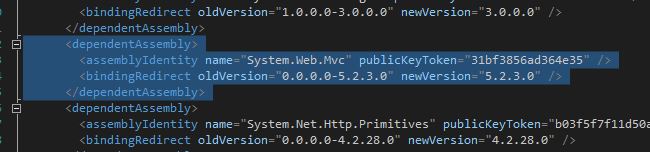
Well although you could update your Nuget to get a specific version of MVC, I found that the easiest way was to update the Sitecore MVC version on the Web.config


This will simply use MVC version 5.2.3 for any call to the dll version earlier than 5.2.3 (including the 5.1.0 from Sitecore 8)

7 February 2015

Sitecore 8 Experience Editor is Loading Slowly

Well after playing with Sitecore 8 for a bit now, I have to say there was quite a lots of nice things, great UI improvement and quite a lots of new features. Really great job!!!! Thanks Sitecore Team...

However, one thing that I was struggling with was the loading time of the Experience editor. You could launch it then wait for 10 minutes without being able to do anything. After a bit of research I found out an really great post from Kam Figy: http://kamsar.net/index.php/2015/02/sitecore-8-experience-editor-performance-optimization/ 

So it seems like there is a SPEAK precompilation happening. So there is a trade:
If you comment these out, you trade having the SPEAK interfaces come up slower the first time (because they are not precompiled) for faster initial startup time (because you skip precompiling)
The precompiling would be good when the application is running on the production server. However, during the development stage we are always compiling our code and restarting the App Pool... So when doing dev work I guess the poor and cons are quite simple: we would definitely go for a faster startup...

I went for the option 1:

Edit the file: /App_Config/Include/Sitecore.Speak.config
comment out the section for the initialise pipeline:


          /sitecore/shell/client/Business Component Library


Edit the file: /App_Config/Include/ContentTesting/Sitecore.ContentTesting.config
comment out the section for the initialise pipeline:


          /sitecore/shell/client/Applications/ContentTesting


This worked quite well on development environment however I would leave those pipelines on the production envrionment as the application would be running for a longer period without restarting the app pool...

27 January 2015

Get related content by profile keys

So this posts is following directly the previous post.

With this 2nd posts I wanted to illustrate how you could use profile card to retrieve related content. During the Sitecore DMS fundamentals training session, we had a chat about Profile card, Profile keys and how we are assigning those to a content item. The example given there was for a Cycling Shop. We could create some profile keys for "Beginner", "Amateur" and "Professional". Obviously, you will have different product that will be for Professional: Helmets, Bikes and even GoPro (why not...). On previous project, we had similar cases where you then wanted to display related content so when a visitor is viewing a bike he will be display with an helmet and other item that will be tagged with the same category: "Professional". Well we usually create a tree list ex field and let the content author tag the content with the category. Even if I think this is great, I was wondering if we could use DMS and profile for that purpose as we are kind of tagging the content item with a card or a key... So here we go.

Before starting, I just wanted to point you to a few blogs and posts which helped me a lot:
So on the previous post we saw that the Tracking and profile cards information where stored on the item: field = __tracking. Awesome, that means we can index those data and so later on we will be able to retrieve it based on a content profile key...

1- Let's start with indexing content including _tracking

As per the posts listed above, the easiest way to index those data will be to use a computed field. In your search configuration file, you will need to add the following into your configuration section:


        < fields hint="raw:AddComputedIndexField">
          < field fieldName="dmstracking" returnType="stringCollection">MyProject.Business.Sitecore.Indexing.DmsComputedField,MyProject.Business< /field>
        < /fields>


Now in your solution you want to create the matching class MyProject.Business.Sitecore.Indexing.DmsComputedField

This class should implement the interface: Sitecore.ContentSearch.ComputedFields.IComputedIndexField

You will create something simple such as :

using Sitecore.Analytics.Configuration;
using Sitecore.Analytics.Data;
using Sitecore.ContentSearch;
using Sitecore.ContentSearch.ComputedFields;
using Sitecore.Data.Fields;
using Sitecore.Data.Items;
using System.Collections.Generic;
using System.Linq;

namespace MyProject.Business.Sitecore.Indexing
{
    public class DmsComputedField : IComputedIndexField
    {
        public string FieldName
        {
            get;
            set;
        }
 
        public string ReturnType
        {
            get;
            set;
        }

        public DmsComputedField()
        {
        }
 
        public object ComputeFieldValue(IIndexable indexable)
        {
            Item item = indexable as SitecoreIndexableItem;
            List profileKeysNames = DmsHelper.GetProfileKeyNames(item,1).ToList();
            return profileKeysNames;
        }
    }
}


Now depending on what you want to index: Profile card Name or Profile Keys, you will need to fill in with your business logic. In this example we will index the list of Profile Keys name. Also note that on the configuration above, we are returning a stringCollection... Using the helpers we have created on the previous post we can retrieve the profile card names doing the following

            List< string> profileKeysNames = DmsHelper.GetProfileKeyNames(item,1).ToList();

Now our search index is configured, we can run the indexer and inspect the index using Luke:


2- Lets start retrieving the related item based on Keys

When the visitor visit a page, which has a profile (profile keys) associated to it, we can get those information through the helper we had on the previous post. from the list of keys for this item, we will be able to run a search against the dmstracking field..

            List< string> profileKeysNames = DmsHelper.GetProfileKeyNames(item,1).ToList();

So we can create a new controller rendering to execute our search


namespace MyProject.Controllers
{
    public class SearchController : SitecoreController
    {
        private readonly ISitecoreContext SitecoreContext;

        public SearchController(ISitecoreContext sitecoreContext)
        {
            this.SitecoreContext = sitecoreContext;
        }

        /// < summary>
        /// This controller action is used to get the related items
        /// < /summary>
        /// < returns>< /returns>
        [System.Web.Mvc.HttpGet]
        public ViewResult GetRelatedItems()
        {
            var searchResultModel = new SearchResult();

            // get the profile cards tagged on the content
            Item item = SitecoreContext.GetCurrentItem< item>();
            List< string> profileKeysNames = DmsHelper.GetProfileKeyNames(item, 1).ToList();

            // get the number of results per page - get only the top 5
            int nbItemPerPage = 5;
            searchResultModel.ResultsPerPage = nbItemPerPage;

            ISearchIndex contentIndex = ContentSearchManager.GetIndex("MyProject_contentsearch_web");
            using (IProviderSearchContext searchContext = contentIndex.CreateSearchContext())
            {
                var listResults =
                    searchContext.GetQueryable< basesearchitem>().Where(p =>
                        profileKeysNames.Contains(p.DmsTracking)
                                ).AsEnumerable().Distinct(new ItemComparer()).ToList();

                searchResultModel.TotalNbResults = listResults.Count();
                searchResultModel.Pages = (int)Math.Ceiling((Decimal)listResults.Count / nbItemPerPage);
                searchResultModel.Results = listResults.Take(nbItemPerPage).ToList();
            }

            return View(@"~/Resources/MyProject/Views/Renderings/Search/SearchResults.cshtml", searchResultModel);
        }
    }
}

There we go, yo can now retrieve all related items which have the same associated Profile Keys...

Also this code was just put together quickly to show some example and surely can be improved but it was just to give a quick start...

3 December 2014

Sitecore 7.x MVC and placeholder key with Capital Letter

Another post today about Sitecore MVC and Placeholder Key. We have this project using Sitecore MVC where the placeholders are defined with capital letters, Eventhough the Page Editor recommendation guide (page 14 to 15) does not say that using Capital Letters will create issues in MVC.... well.... it does. So even if not said directly on the guide: use lower case for your placeholder name... But just in case it is too late and you need to page editor, you can read the following...

In MVC, adding a placeholder in the renderings with capital letters will not create any problem when binding any rendering to this placeholder. However, Sitecore will not resolve your Placeholder settings correctly and you will not see the "Add Here" buttons neither the "allowed controls"

To summarise, if you do something like:

        @Html.Sitecore().Placeholder("SideColumn")

You will end up withthe SideColumn placeholder not even displayed, even if you add capital letters in the Placeholder Settings:


That would not really bother me as I would need to rename all placeholder into lower case and voila!!! But I wanted to find out if there would be an easier way and something that would allow me to have capital letter in the Name... When trying to see where this is falling, you have to check how the Chrome Data are rendered. If you look at the pipeline "GetChromeData", you can see that there is a processor for Placeholder:

      < getChromeData>
        < processor type="Sitecore.Pipelines.GetChromeData.Setup, Sitecore.Kernel" />
        < processor type="Sitecore.Pipelines.GetChromeData.GetFieldChromeData, Sitecore.Kernel" />
        < processor type="Sitecore.Pipelines.GetChromeData.GetWordFieldChromeData, Sitecore.Kernel" />
        < processor type="Sitecore.Pipelines.GetChromeData.GetRenderingChromeData, Sitecore.Kernel" />
        < processor type="Sitecore.Pipelines.GetChromeData.GetEditFrameChromeData, Sitecore.Kernel" />
        < processor type="Sitecore.Pipelines.GetChromeData.GetPlaceholderChromeData, Sitecore.Kernel" />
      < /getChromeData>


When following the trail from the GetPlaceholderChromeData you will find that the code is calling another pipeline "GetPlaceHolderRenderings"
                        GetPlaceholderRenderingsArgs getPlaceholderRenderingsArgs = new GetPlaceholderRenderingsArgs(text, layout, args.Item.Database)
                        {
                            OmitNonEditableRenderings = true
                        };
                        CorePipeline.Run("getPlaceholderRenderings", getPlaceholderRenderingsArgs);

with the pipeline looking like:
      < getPlaceholderRenderings>
        < processor type="Sitecore.Pipelines.GetPlaceholderRenderings.GetAllowedRenderings, Sitecore.Kernel" />
        < processor type="Sitecore.Pipelines.GetPlaceholderRenderings.GetPredefinedRenderings, Sitecore.Kernel" />
        < processor type="Sitecore.Pipelines.GetPlaceholderRenderings.RemoveNonEditableRenderings, Sitecore.Kernel" />
        < processor type="Sitecore.Pipelines.GetPlaceholderRenderings.GetPlaceholderRenderingsDialogUrl, Sitecore.Kernel" />
      < /getPlaceholderRenderings>


Continuing the trail... go to the first processor: GetAllowedRenderings. In there you will find out how the PlaceholderItem is getting retrieved
    using (new DeviceSwitcher(args.DeviceId, args.ContentDatabase))
    {
     item = Client.Page.GetPlaceholderItem(args.PlaceholderKey, args.ContentDatabase, args.LayoutDefinition);
    }


If you look inside this method you will see that those placeholder Item are retrieved from the cache:
 PlaceholderCache placeholderCache = PlaceholderCacheManager.GetPlaceholderCache(database.Name);
 Item item = placeholderCache[placeholderKey];
 if (item != null)
 {
  return item;
 }
 int num = placeholderKey.LastIndexOf('/');
 if (num >= 0)
 {
  string key = StringUtil.Mid(placeholderKey, num + 1);
  item = placeholderCache[key];
 }
 return item;

You will note that the placeholderCache.IsKeyCaseSensitive is false, and this return null if you are passing the key as capital letters... So if we look at how the cache is build:
public virtual void Reload()
{
 lock (FieldRelatedItemCache.Lock)
 {
  this.itemIDs = new SafeDictionary();
  string query = string.Format("{0}//*[@@templateid = '{1}']", this.ItemRoot.Paths.FullPath, this.ItemTemplate);
  Item[] array = this.Database.SelectItems(query);
  if (array != null)
  {
   Item[] array2 = array;
   for (int i = 0; i < array2.Length; i++)
   {
    Item item = array2[i];
    string text = item[this.FieldKey];
    if (!string.IsNullOrEmpty(text))
    {
     string cacheKey = this.GetCacheKey(text);
     if (!this.itemIDs.ContainsKey(cacheKey))
     {
      this.Add(text, item);
     }
    }
   }
  }
 }
}

with the method GetCacheKey where you can see that if the IsKeyCaseSensitive is false the cache key will be lower case...
protected virtual string GetCacheKey(string key)
{
 if (this.IsKeyCaseSensitive || string.IsNullOrEmpty(key))
 {
  return key;
 }
 return key.ToLowerInvariant();
}


Also inside the Add method there is also a call to the GetCacheKey... So
 string cacheKey = this.GetCacheKey(key);
 lock (FieldRelatedItemCache.Lock)
 {
  this.itemIDs[cacheKey] = item.ID;
 }

That means the key is stored as capital Letter if you have define your field in the placeholder settings as capital letter. So what happens where we try to retrieve the item from the cache is that we are passing the Key as Capital letter but it is stored as lower case...
public virtual Item this[string key]
{
 get
 {
  Item result;
  lock (FieldRelatedItemCache.Lock)
  {
   ID itemId;
   if (!this.itemIDs.TryGetValue(key, out itemId))
   {
    result = null;
   }
   else
   {
    Item item = this.Database.GetItem(itemId, Context.Language, Version.Latest);
    if (item == null)
    {
     this.itemIDs.Remove(key);
    }
    result = item;
   }
  }
  return result;
 }
}


So I went around this issue by adding a custom pipeline action on the GetChromeData pipeline to convert the Placeholder Key to Lower Invariant if the Key for the cache manager is not sensitive...
namespace MyProject.Business.Sitecore.Pipelines
{
    public class GetPlaceholderKeyForChromeData : GetPlaceholderChromeData
    {
        public override void Process(GetChromeDataArgs args)
        {
            if ("placeholder".Equals(args.ChromeType, StringComparison.OrdinalIgnoreCase))
            {
                PlaceholderCache placeholderCache = PlaceholderCacheManager.GetPlaceholderCache(args.Item.Database.Name);
                if (!placeholderCache.IsKeyCaseSensitive)
                {
                    string keyString = args.CustomData["placeHolderKey"] as string;
                    args.CustomData["placeHolderKey"] = keyString.ToLowerInvariant();
                }
            }
        }
    }
}

With the following config patch
      
< getchromedata>
        < processor patch:before="processor[@type='Sitecore.Pipelines.GetChromeData.GetPlaceholderChromeData, Sitecore.Kernel']" type="MyProject.Business.Sitecore.Pipelines.GetPlaceholderKeyForChromeData, MyProject.Business">
      < /processor>
< /getchromedata>


Overwritting Placeholder settings on specific templates

On a previous post, I was talking about how to create a placeholder which will allow certain controls only. For that we had a 2 Columns Renderings (Main Column and Side Column) which had the following Markups and placeholders


    < div class="row">  
        < h1 class="col-sm-12">@Html.Sitecore().Placeholder("imagebanner")< /h1>  
    < /div>  
      
    < div class="row">  
         < h1 class="col-sm-12">@Html.Sitecore().Placeholder("contenttitle")< /h1>  
    < /div>  
    < div class="row">  
        < div class="col-sm-9 main-column">  
            < article class="col-sm-12">  
                @Html.Sitecore().Placeholder("contentcolumn")  
            < /article>  
        < /div>  
        < div class="col-sm-3 sidebar">  
            @Html.Sitecore().Placeholder("sidecolumn")  
        < /div>  
    < /div>  


As we saw, it was quite easy to define our Sitecore placeholder settings and allow a few controls:


Well this was really nice and handy if your templates using the 2 Columns Rendering should allow all 4 renderings: Rich Text, Image, Navigation, Related News. BUT... What if some of your templates should only allow 1 rendering? In the news content page for instance, you want to allow only the related news panel. Creating a new rendering with a different placeholder key??? no way.... Well, good thing sitecore thought about this. You can overwritte the placeholder through the presentation:

1- Define a new placeholder in Sitecore. This new placeholder will be exactly the same as per the first one Except:
  • Having a different Key: the key must be unique, so you have to use another key
  • Instead of allowing the 4 renderings, we will only allow 1: Related News Panel


2- Edit the template - or item you want to have different settings in the placeholder:

In this example we will edit a specific item but you can do it at the template level:
  • Select your item.
  • Go to the presentation
  • Select the placholder settings 
  • Click edit
   
  •  When editing, you can select "Select Existing Settings" on the Left hand side and then Select our new placeholder settings. Make sure the Placholder Key correspond to the key you were using previously


You can now save everything and go to the page editor. You will notice that on the placeholders you will not see "SideColumn" but "NewsItemSidePanel". Then if you add a new panel, you will notice only the related news panel is available:


31 October 2014

Sitecore 7.2 MVC, Personalisation issue with WFFM


Not long ago, I faced an issue when using personalization. It is usually straight forward to setup but somehow this time it did not work. This was quite annoying and get me going for a bit of time. So I wanted to share it in case anybody out there would faced the same issue.

So for the project we were using:
  • Sitecore 7.2 MVC, 
  • GlassMapper
  • WFFM for all the forms on the website. 
As you can imagine most of the presentation elements were View renderings, except a few controller renderings. When setting up the personalisation rules, everything seems to be working perfectly at first until the testing team reported an issue:
When personalisation rules were set on an item, none of them was triggered. Looked like the rules engine was not working correctly. 


After investigating the issue it seems like it was only when personalisation was applied on Controller rendering. After trying the rule engine on a fresh Sitecore install, everything was working perfectly. So I started to take out our customisation elements one by one. After commenting all pipeline actions I could think of having anything to do with the issue and no luck, the issue was still there. Until "light bulb": let's check the Showconfig.aspx page:


And there you go, the pipeline action where the rule engine is triggered is the "CustomizeRendering" from the Sitecore.Mvc.Analytics.config


As you can see from the pipeline, One processor is intercepting the GetRenderer before it was hitting the rules engine. The pipeline action is from the Sitecore.Forms.MVC.config file. Looking at the code in this processor you will see the following:

if (args.Rendering.RenderingItem.ID != IDs.FormMvcInterpreterID)
{
    return base.GetRenderer(rendering, args);
}
Tuple< string, string> controllerAndAction = this.GetControllerAndAction(rendering, args);
if (controllerAndAction == null)
{
    return null;
} 


This will obviously intercept the Controller rendering and return the Conntroller and action prior evaluating the Rules...

If you are looking at the configuration file: Sitecore.Forms.MVC.config then you will realized that the intend is to place this processor before the GetControllerRenderer to ensure that the form controller will be executed before a normal ControllerRenderer:


When Sitecore is parsing the Configuration files the Sitecore.MVC.Analytics.config is parsed after the Sitecore.Forms.MVC.config... Which means that the GetFormControllerRenderer will get executed before the Rule engine...

Solution:
rename the config file to be "t_Sitecore.Forms.MVC.config". This will ensure that the processor will happen after the rules engine kicks in:

29 October 2014

Restricting renderings selection for placeholder

Today, I just wanted to talk about a simple thing but quite helpful when starting to develop with Page Editor: How can you specify which rendering can be inserted in a placeholder. This is really useful for Side panels for insance. You have created different types of panel (renderings) and now you want the to allow content editor to insert only those through the Page Editor such as the follownig:


Well, this is quite simple:

1- Placeholder in your code

Let's say you have a 2 columns rendering that will placed int your main layout. This 2 columns rendering will have 2 laceholders: one for the Main content and one for the Side Column. Something like:

< div class="row">
    < h1 class="col-sm-12">@Html.Sitecore().Placeholder("imagebanner")< /h1>
< /div>

< div class="row">
     < h1 class="col-sm-12">@Html.Sitecore().Placeholder("contenttitle")< /h1>
< /div>
< div class="row">
    < div class="col-sm-9 main-column">
        < article class="col-sm-12">
            @Html.Sitecore().Placeholder("contentcolumn")
        < /article>
    < /div>
    < div class="col-sm-3 sidebar">
        @Html.Sitecore().Placeholder("sidecolumn")
    < /div>
< /div>


2- Sitecore elements

On the sitecore side, the only thing you will need to define the Placeholder Settings under the path: /sitecore/layout/Placeholder Settings/xxx

You can noticed the Placeolder Key match the definition of the placeholder in our code:
@Html.Sitecore().Placeholder("sidecolumn")

You can also notice that you can select the Allowed Controls. Those will be the controls that are display to the Content Author when adding a new element in the placeholder. Once this is defined, Sitecore will automatically make the mapping. and now on the Page Editor you will see the "Add" buttons when you select the placeholder...In a future post I will describe how you can overwrite this placeholder settings for specific template...

14 September 2014

Retrieve Datasource from a Controller Rendering

If you are using Sitecore MVC then I am sure you have been using Controller Rendering. When using personlisation you are most likely either switch the Rendering or simply change the Datasource to point at different items. In your controller code, you may have tried the following:

SitecoreContext.GetCurrentItem< Item>()

With the SitecreContext being the Glass.Mapper.Sc.ISitecoreContext...

The GetCurrentItem in the controller will always return the Context Item, not the Datasource. So you need to actually retrieve the Datasource with Code. What you can use is something similar to:

        /// 
        /// Get either the data source or the context item
        /// 
        private Item Datasource
        {
            get
            {
                var dataSource = SitecoreContext.GetCurrentItem< Item>();
                string datasourceId = RenderingContext.Current.Rendering.DataSource;
                if (Sitecore.Data.ID.IsID(datasourceId))
                {
                    dataSource = SitecoreContext.GetItem< Item>(new Guid(datasourceId));
                }

                return dataSource;
            }
        }

From the above code you can see that this will either return the Context Item if the Datasource is not set, OR the datasource item if set.

Now, I am sure you will have to create multiple Controller Renderings in your solution. So it could be a great idea to create an abstract class Controller and all your controller will be based on this:

namespace MySite.Controllers
{
    public abstract class BaseController: SitecoreController
    {
        protected readonly ISitecoreContext BaseSitecoreContext;

        public BaseController(ISitecoreContext sitecoreContext)
        {
            this.BaseSitecoreContext = sitecoreContext;
        }

        /// 
        /// Get either the data source or the context item
        /// 
        public Item Datasource
        {
            get
            {
                var dataSource = BaseSitecoreContext.GetCurrentItem< Item>();
                string datasourceId = RenderingContext.Current.Rendering.DataSource;
                if (Sitecore.Data.ID.IsID(datasourceId))
                {
                    dataSource = BaseSitecoreContext.GetItem< Item>(new Guid(datasourceId));
                }

                return dataSource;
            }
        }
    }
}


You can now use the base Controller to derive your custom controller:
    public class CalculatorController : BaseController
    {
        private readonly ISitecoreContext sitecoreContext;

        public CalculatorController(ISitecoreContext sitecore)
            : base(sitecore)
        {
             // Do whatever
        }
    }