Showing posts with label GlassMapper. Show all posts

12 June 2015

Experience Editor Edit Frame Button

On a recent project using Sitecore 8, we have extensively used the Experience Editor, which I have to say was really nice to work with. As usual, we have used MVC along side with GlassMapper. For one of our template page, we had some of the fields that needed to be editable but should not show on the page. This is where WebEdits frame buttons came quite handy. That is something you would have never used if you are not using the Experience editor.

So what is the web edit frame buttons. Well those are the buttons that appears when you select an element on your experience editor and allows you to edit either external elements and/or fields that are not displayed on your page. They appears as per the below:


Once you click on the button then you will see a new popup to edit whatever fields you want on the item you want:


To configure it is quite simple:

Go to the Core Database and locate the WebEdit section: 


Locate the folder called Edit Frame Buttons (/sitecore/content/Applications/WebEdit/Edit Frame Buttons), this will give you a good sample of the buttons, especially the Edit one.

You can duplicate the folder and rename it as you would like. Then on the edit button you will be able to edit the following field:


You will notice that on the "Fields" field you will be able to add the "|" separated list of the fields you want to allow user to edit on the frame as per the below:


After defining the fields list available on your Edit button, you will need to do a bit of coding to ensure the webedit frame appears on the Experience Editor. 

1- go to your view rendering and locate the section where you want the frame to appear
2- add the following using:

    using (BeginEditFrame(XXX.Common.Constants.ButtonItemPaths.Common.AddThisButtons, Model.Path))
    {
        
[+ Edit Add This for the Page]
}

The first parameter of your BeginEditFrame will be the path to the Folder you created on the Core DB:
XXX.Common.Constants.ButtonItemPaths.Common.AddThisButtons

will be something like
/sitecore/content/Applications/WebEdit/XXX/Edit Frame Buttons/Common/Add This Buttons
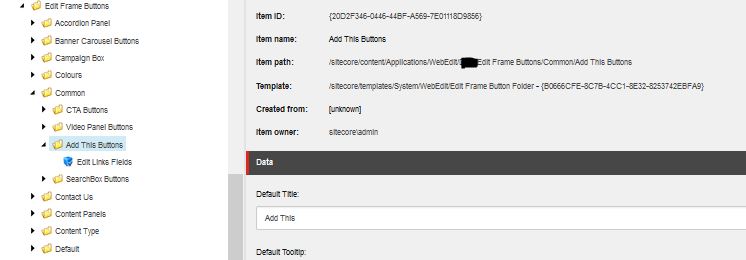
The second Parameter will be the path to the item you would like to edit:
Model.Path

will be something similar to
/sitecore/content/XXX/Home/About Us

There you go... you now have your Webedit buttons on your experience editor.

5 May 2015

Passing Invalid ID in the Rendering Datasource Break your page

Using Sitecore 8 MVC and GlassMapper has been awesome (Thanks to Mike Edwards great work). This is one of the must have for Sitecore MVC. I usually have my Rendering Datasource field pointing at a "Data" Item on the tree:


On the View code I can then bind my view with the Model using GlassMapper as per the following Code:

@inherits Glass.Mapper.Sc.Web.Mvc.GlassView<DPE.Data.Interfaces.SiteSettings.ISiteSettings>

I like to use Interfaces when defining the Models...

While this is great and working correctly when all is setup correctly, I have had a small issue on a latest project where editors deleted the datasource item without removing the links. Which left the Presentation of the item with a broken link:


Although this was quite simple to fix and instruct the client to select the option to either remove the links and/or editing the links manually. This was pointing at another case scenario:

what if you forgot to publish the data source item... Indeed in this situation you will end up with the same broken link in your datasource field on the web database and it will break the page with the following error:


The issue there is that sitecore is trying to create the default model during the pipeline action:

Sitecore.Mvc.Pipelines.Response.GetModel.CreateDefaultRenderingModel, Sitecore.Mvc

While trying to implement a custom action to replace the above pipeline, I found this great post from Hiral Desai. Really great source of information to implement the way around the issue:

The work around was quite simple: replacing the GetViewRenderer pipeline action. In order to do that we need to add the following config entry in our custom patch config files:


  < sitecore>


Then on the code side, we need to implement our new pipeline acttion with the following code:
public class GetViewRendererWithItemValidation : GetViewRenderer
    {        
        protected override Renderer GetRenderer(Rendering rendering, GetRendererArgs args)
        {           
            var viewRenderer = base.GetRenderer(rendering, args) as ViewRenderer;
            if (viewRenderer == null)
                return null;

            // Ignore item check when in page editor
            // Also this will break if the item for the datasource has been deleted without removing the link.
            if (Context.PageMode.IsPageEditor || Context.PageMode.IsPageEditorEditing)
                return viewRenderer;

            // Override renderer to null when there is an unpublished item refererenced by underlying view
            return viewRenderer.Rendering.Item != null && viewRenderer.Rendering.RenderingItem.InnerItem != null
                ? viewRenderer
                : null;
        }
    }

Hoping that will help anyone.