12 June 2015

Experience Editor Edit Frame Button

On a recent project using Sitecore 8, we have extensively used the Experience Editor, which I have to say was really nice to work with. As usual, we have used MVC along side with GlassMapper. For one of our template page, we had some of the fields that needed to be editable but should not show on the page. This is where WebEdits frame buttons came quite handy. That is something you would have never used if you are not using the Experience editor.

So what is the web edit frame buttons. Well those are the buttons that appears when you select an element on your experience editor and allows you to edit either external elements and/or fields that are not displayed on your page. They appears as per the below:


Once you click on the button then you will see a new popup to edit whatever fields you want on the item you want:


To configure it is quite simple:

Go to the Core Database and locate the WebEdit section: 


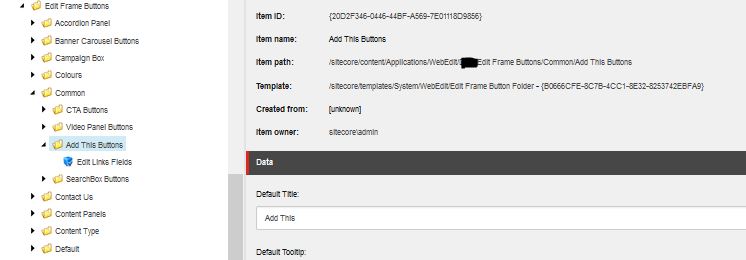
Locate the folder called Edit Frame Buttons (/sitecore/content/Applications/WebEdit/Edit Frame Buttons), this will give you a good sample of the buttons, especially the Edit one.

You can duplicate the folder and rename it as you would like. Then on the edit button you will be able to edit the following field:


You will notice that on the "Fields" field you will be able to add the "|" separated list of the fields you want to allow user to edit on the frame as per the below:


After defining the fields list available on your Edit button, you will need to do a bit of coding to ensure the webedit frame appears on the Experience Editor. 

1- go to your view rendering and locate the section where you want the frame to appear
2- add the following using:

    using (BeginEditFrame(XXX.Common.Constants.ButtonItemPaths.Common.AddThisButtons, Model.Path))
    {
        
[+ Edit Add This for the Page]
}

The first parameter of your BeginEditFrame will be the path to the Folder you created on the Core DB:
XXX.Common.Constants.ButtonItemPaths.Common.AddThisButtons

will be something like
/sitecore/content/Applications/WebEdit/XXX/Edit Frame Buttons/Common/Add This Buttons
The second Parameter will be the path to the item you would like to edit:
Model.Path

will be something similar to
/sitecore/content/XXX/Home/About Us

There you go... you now have your Webedit buttons on your experience editor.

29 May 2015

Sitecore MVC and Castle.Windsor

I just wanted to add do a quick post today about Castle.Windsor, Sitecore MVC and your own project solution. I am usually using Castle.Windsor as IOC. I am quite sure a few of us encountered the following issue when running Sitecore some application on the Sitecore Client:


4976 16:45:28 ERROR Application error.
Exception: Sitecore.Mvc.Diagnostics.ControllerCreationException
Message: Could not create controller: 'Media'. 
The current route url is: 'api/sitecore/{controller}/{action}'. 
Source: Sitecore.Mvc
   at Sitecore.Mvc.Controllers.SitecoreControllerFactory.CreateController(RequestContext requestContext, String controllerName)
   at System.Web.Mvc.MvcHandler.ProcessRequestInit(HttpContextBase httpContext, IController& controller, IControllerFactory& factory)
   at System.Web.Mvc.MvcHandler.BeginProcessRequest(HttpContextBase httpContext, AsyncCallback callback, Object state)
   at System.Web.HttpApplication.CallHandlerExecutionStep.System.Web.HttpApplication.IExecutionStep.Execute()
   at System.Web.HttpApplication.ExecuteStep(IExecutionStep step, Boolean& completedSynchronously)
 
Nested Exception
 
Exception: Castle.MicroKernel.ComponentNotFoundException
Message: No component for supporting the service Sitecore.Controllers.MediaController was found
Source: Castle.Windsor
   at Castle.MicroKernel.DefaultKernel.Castle.MicroKernel.IKernelInternal.Resolve(Type service, IDictionary arguments, IReleasePolicy policy)
   at DPE.Business.DI.WindsorControllerFactory.GetControllerInstance(RequestContext requestContext, Type controllerType) in r:\Projects\XXX\Trunk\XXX.Business\DI\WindsorControllerFactory.cs:line 34
   at System.Web.Mvc.DefaultControllerFactory.CreateController(RequestContext requestContext, String controllerName)
   at Sitecore.Mvc.Controllers.SitecoreControllerFactory.CreateController(RequestContext requestContext, String controllerName)

The issue there is if you are defining your IOC, you may need to ensure that This is resolving your Sitecore controllers correctly as well. here is the few controller I needed on my Initialisation:

            container.Register(Classes.FromAssemblyNamed("Sitecore.Speak.Client").BasedOn().LifestylePerWebRequest());
            container.Register(Classes.FromAssemblyNamed("Sitecore.Mvc").BasedOn().LifestylePerWebRequest());
            container.Register(Classes.FromAssemblyNamed("Sitecore.Mvc.DeviceSimulator").BasedOn().LifestylePerWebRequest());
            container.Register(Classes.FromAssemblyNamed("Sitecore.Marketing.Client").BasedOn().LifestylePerWebRequest());
            container.Register(Classes.FromAssemblyNamed("Sitecore.Client.LicenseOptions").BasedOn().LifestylePerWebRequest());

5 May 2015

Passing Invalid ID in the Rendering Datasource Break your page

Using Sitecore 8 MVC and GlassMapper has been awesome (Thanks to Mike Edwards great work). This is one of the must have for Sitecore MVC. I usually have my Rendering Datasource field pointing at a "Data" Item on the tree:


On the View code I can then bind my view with the Model using GlassMapper as per the following Code:

@inherits Glass.Mapper.Sc.Web.Mvc.GlassView<DPE.Data.Interfaces.SiteSettings.ISiteSettings>

I like to use Interfaces when defining the Models...

While this is great and working correctly when all is setup correctly, I have had a small issue on a latest project where editors deleted the datasource item without removing the links. Which left the Presentation of the item with a broken link:


Although this was quite simple to fix and instruct the client to select the option to either remove the links and/or editing the links manually. This was pointing at another case scenario:

what if you forgot to publish the data source item... Indeed in this situation you will end up with the same broken link in your datasource field on the web database and it will break the page with the following error:


The issue there is that sitecore is trying to create the default model during the pipeline action:

Sitecore.Mvc.Pipelines.Response.GetModel.CreateDefaultRenderingModel, Sitecore.Mvc

While trying to implement a custom action to replace the above pipeline, I found this great post from Hiral Desai. Really great source of information to implement the way around the issue:

The work around was quite simple: replacing the GetViewRenderer pipeline action. In order to do that we need to add the following config entry in our custom patch config files:


  < sitecore>


Then on the code side, we need to implement our new pipeline acttion with the following code:
public class GetViewRendererWithItemValidation : GetViewRenderer
    {        
        protected override Renderer GetRenderer(Rendering rendering, GetRendererArgs args)
        {           
            var viewRenderer = base.GetRenderer(rendering, args) as ViewRenderer;
            if (viewRenderer == null)
                return null;

            // Ignore item check when in page editor
            // Also this will break if the item for the datasource has been deleted without removing the link.
            if (Context.PageMode.IsPageEditor || Context.PageMode.IsPageEditorEditing)
                return viewRenderer;

            // Override renderer to null when there is an unpublished item refererenced by underlying view
            return viewRenderer.Rendering.Item != null && viewRenderer.Rendering.RenderingItem.InnerItem != null
                ? viewRenderer
                : null;
        }
    }

Hoping that will help anyone.


17 April 2015

Sitecore 8 Experience Editor Nav Bar disappear when scrolling

One weird issue we had today, which I am surprise we did not picked it up earlier is:

Where is the Children on the Nav Bar??
when opening the page and try to navigate, it all looks fine:

But then when starting to scroll down the page then trying to navigate again... it all disappear:


Well that is caused by the breadcrumb beeing positioned absolute instead of fixed. It has been reported as a bug with the reference 428971 and the workaround provided for the issue is to update 2 files;

\Website\sitecore\shell\client\Sitecore\Speak\Ribbon\Controls\Breadcrumb\Breadcrumb.js

\Website\sitecore\shell\client\Sitecore\Speak\Ribbon\Controls\LargeDropDownButton\LargeDropDownButton.js


For whoever needs this fix, please let me know and I will send you those 2 files...

Cheers

2 April 2015

Sitecore 8 Link Target information broken

Starting the new year with Sitecore 8 :) That sounds really great.
Good to see the interface refresh...

After a few plays with it I had an interesting issue coming back from the tester team... Selecting the "Target" on the general link did not seems to behave correctly. Indeed selecting opening in new browser did not seems to work at all... With a bit of HTML lookup we straight away noticed that the value output on the "a" element for the target was not correct. This was outputting the options:


  • Active Browser
  • New Browser
  • Custom
Instead of

  • _self
  • _blank
After a few investigation, we noticed that the value used on the element was the actual Sitecore Name for the option instead of the value in the field:


We tried to update the Field Value on each option with no success:


As a work around we decided to duplicate the entire Targets folder and rename the different items to read the correct values:


The final steps was to make sure the new folder will be used as a source to the options on the dialog box. For that we updated the Root field on the following item:

/sitecore/client/Applications/Dialogs/InsertLinkViaTreeDialog/PageSettings/TargetsSearchPanelConfig


And there we go:


Lucky for us we noticed it on our internal testing and we did not have to go through all the links and update them to use the new options... Unfortunately, if you have already started to use the initial options then you will have to re-edit the links and select the new target... Sorry for that...

18 March 2015

Bootstrap... Experience editor few fixes

I am sure you all love Bootstrap. We are using the framework quite a lot here and save us quite a lots of time in development for Responsive. It offers banner carousel and plenty of other things that gives you a good quick and easy start... If you don't know it yet, you can check it out: http://getbootstrap.com/
Another great thing about it is it works with Sass and Less.

Well one thing I noticed when putting it all into Sitecore 8 is that the some element on the Experience Editor was a little off. For instance, on the Nav Bar when selecting a child page you will see the following:


There is also a few missaligned buttons, and the Add Here buttons when selecting "Components" are displaying a little funny:


Well those are not really too annoying as it does not affect the functionalities but it make the User experience a bit better. So a quick solution is to create a specific Stylesheet for the Experience Editor in which we will be able to add any style specific for displaying the pages on the experience editor. Having those in a separate Stylesheet will means that those will not increase the size of the CSS file for the Live website. Well not that this file will be too big though. So here we go:

The first thing to do is to create a CSS file:

Now on our layout, lets make sure this file is loaded only when the page is in Editor mode


All good, well know what can we put in there to make it better in Experience editor:


.scInsertionHandleCenter{box-sizing: content-box !important;  -webkit-box-sizing: content-box !important; -moz-box-sizing: content-box !important; }
.scInsertionHandleCenter,.sc-breadcrumb .sc-breadcrumb-item-path, .sc-breadcrumb-item-path img, .scChromeCommand{  -webkit-box-sizing: initial;  -moz-box-sizing: initial;  box-sizing: initial;}
.sc-breadcrumb-item-path img{vertical-align: initial;}
.sc-breadcrumb-item-path span{font-size: 12px; } 

4 March 2015

Sitecore 8 MVC version conflict

After playing a bit with Sitecore 8 and setting up a solution, I ran into an error which was kind of interresting:


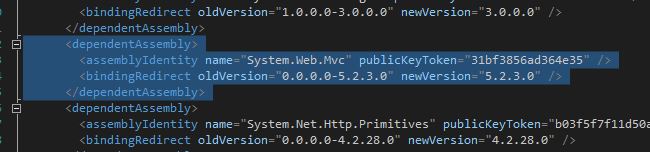
Like many of my fellow dev, I usually include MVC through Nuget Packages. But I did not thought this would break the site... Well seems like the MVC version in Sitecore 8 is: MVC 5.1.0


and obviously the one coming from Nuget was newer: 5.2.3


Well although you could update your Nuget to get a specific version of MVC, I found that the easiest way was to update the Sitecore MVC version on the Web.config


This will simply use MVC version 5.2.3 for any call to the dll version earlier than 5.2.3 (including the 5.1.0 from Sitecore 8)

7 February 2015

Sitecore 8 Experience Editor is Loading Slowly

Well after playing with Sitecore 8 for a bit now, I have to say there was quite a lots of nice things, great UI improvement and quite a lots of new features. Really great job!!!! Thanks Sitecore Team...

However, one thing that I was struggling with was the loading time of the Experience editor. You could launch it then wait for 10 minutes without being able to do anything. After a bit of research I found out an really great post from Kam Figy: http://kamsar.net/index.php/2015/02/sitecore-8-experience-editor-performance-optimization/ 

So it seems like there is a SPEAK precompilation happening. So there is a trade:
If you comment these out, you trade having the SPEAK interfaces come up slower the first time (because they are not precompiled) for faster initial startup time (because you skip precompiling)
The precompiling would be good when the application is running on the production server. However, during the development stage we are always compiling our code and restarting the App Pool... So when doing dev work I guess the poor and cons are quite simple: we would definitely go for a faster startup...

I went for the option 1:

Edit the file: /App_Config/Include/Sitecore.Speak.config
comment out the section for the initialise pipeline:


          /sitecore/shell/client/Business Component Library


Edit the file: /App_Config/Include/ContentTesting/Sitecore.ContentTesting.config
comment out the section for the initialise pipeline:


          /sitecore/shell/client/Applications/ContentTesting


This worked quite well on development environment however I would leave those pipelines on the production envrionment as the application would be running for a longer period without restarting the app pool...